Guide · Agents, APIs & MCP
Git Worktrees for AI Coding Agents: Run Agents in Parallel
Give each AI coding agent its own Git worktree so parallel sessions never touch each other's files. The commands, how Claude Code, Codex, Cursor and VS Code handle it, and the setup that makes it work.
Metarix Editorial · Nov 13, 2026 · 10 min read
Documentation-based research
On this page

To run several AI coding agents on one repository at the same time, give each agent its own Git worktree: a separate folder with its own branch and uncommitted changes that shares the repository's history. Agents then can't overwrite each other's files, and you review each one's work as a normal branch or pull request.
This guide explains how worktrees work, the five Git commands you need, how Claude Code, Codex, Cursor and VS Code manage worktrees for you as of Nov 13, 2026, a setup checklist, and the mistakes that cost people work.
Quick answer
If you use one agent tool, let it manage worktrees: Claude Code with claude --worktree <name>, Codex in the ChatGPT desktop app with the Worktree option, or Cursor with the Agents Window or /worktree. If you mix tools or want worktrees outside the repository, create them yourself with git worktree add and start any agent inside. Either way, plan for three things the tools don't fix: a fresh worktree has no installed dependencies or .env file, a branch can be checked out in only one worktree, and parallel agents still produce merge conflicts if their tasks touch the same files.
Scroll the table horizontally on smaller screens.
| Tool | How you start one | Default location | Copies ignored files | Automatic cleanup |
|---|---|---|---|---|
| Git (any agent) | git worktree add <path> -b <branch> | Wherever you choose | No, copy them yourself | No; you run remove and prune |
| Claude Code | claude --worktree <name> (or -w) | .claude/worktrees/<name>/ on branch worktree-<name> | Yes, files listed in .worktreeinclude | Prompts on exit; periodic sweep for subagent and background worktrees |
| Codex (ChatGPT desktop app) | Select Worktree under the composer | $CODEX_HOME/worktrees, detached HEAD | Yes, files listed in .worktreeinclude | Keeps the 15 most recent by default; saves a snapshot first |
| Cursor | Agents Window, or /worktree and /best-of-n in the IDE | Managed by Cursor | Via setup commands in .cursor/worktrees.json | Keeps 25 per machine by default |
| VS Code | Source Control: Worktrees > Create Worktree | Location you pick | No | No; Git: Delete Worktree |
What a Git worktree is
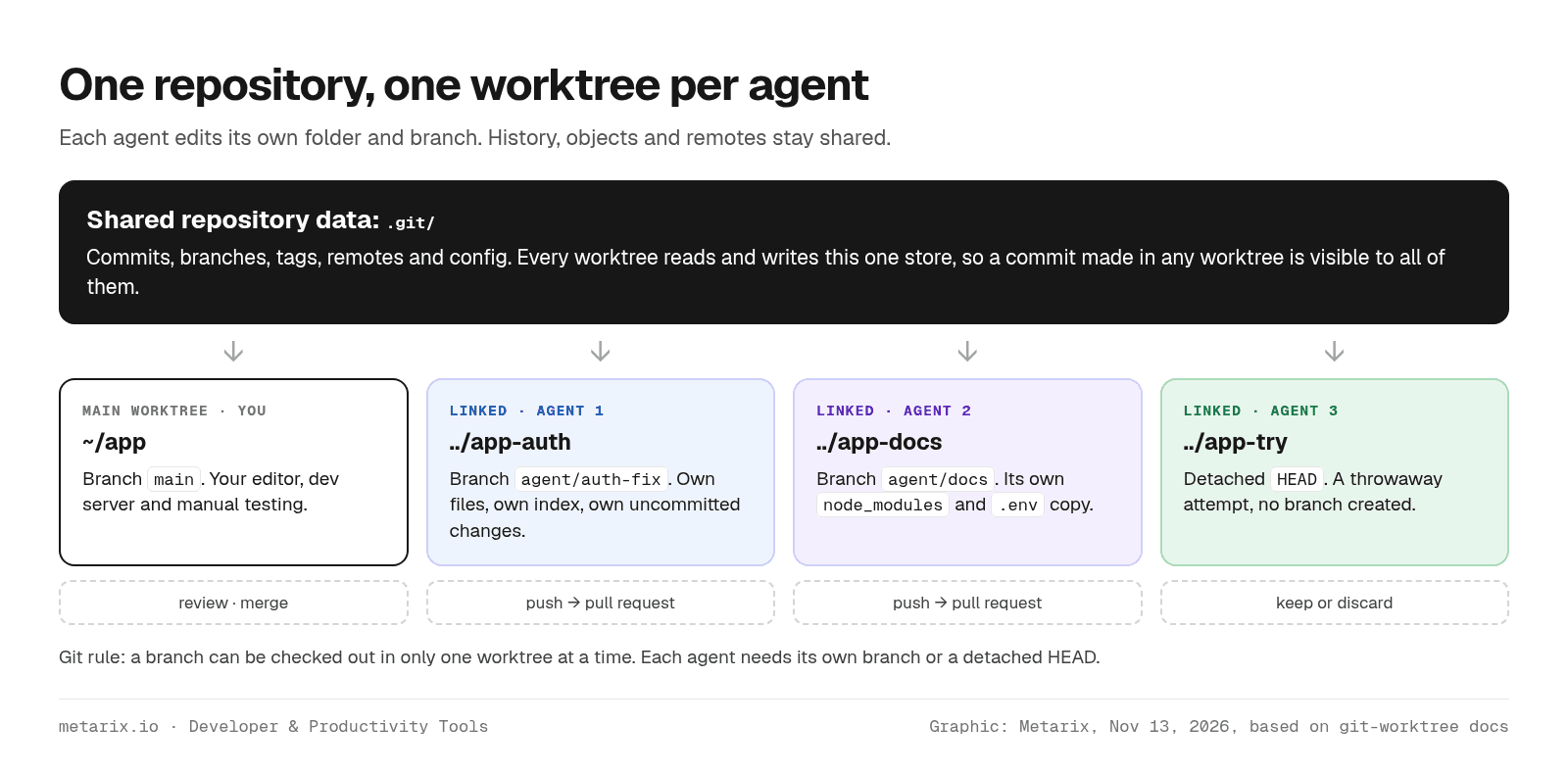
A Git repository normally has one working directory. git worktree adds more: each linked worktree is another folder attached to the same repository, with its own checked-out files, its own staging area (index) and its own HEAD. Commits, branches, tags, remotes and the object store are shared, so a commit made in one worktree is immediately visible from all the others.
That split is exactly what parallel agents need. File edits, installs and test runs happen in separate folders, so one agent's half-finished refactor never shows up in another agent's build. Because the history is shared, there is no second clone to keep in sync and no extra download of the repository.
The one-branch rule
Git refuses to check out the same branch in two worktrees. OpenAI's Codex docs explain why: a branch is a single mutable reference, and letting two working copies advance it at once would invite lost commits and race conditions. In practice, every agent needs its own branch, or a detached HEAD for throwaway attempts. If you try to check out a branch that another worktree holds, Git stops with an error like fatal: 'agent/docs' is already used by worktree at '...'.
Worktree vs clone vs branch switching
Scroll the table horizontally on smaller screens.
| Approach | Disk and setup | Shares history | Isolation | Best for |
|---|---|---|---|---|
| Switching branches in one folder | None extra | Yes | None: one agent at a time | Single-agent work |
| Git worktree | Extra working files and dependencies per worktree | Yes, one .git store | Files, index and branch | Several local agents on one repo |
| Separate clone | Full copy of the repository per clone | No, each clone fetches separately | Complete, including config | Agents that need different Git config or remotes |
| Container or cloud sandbox | Image or VM per task | Via clone inside | Files, processes and network | Untrusted or long-running agents |
The Git commands you need
Five commands from the git-worktree reference cover almost everything. We ran this sequence on Git 2.47.3 in a scratch repository while writing this guide; your paths and hashes will differ.
# Create two worktrees, each on a new branch, next to the main checkoutgit worktree add -b agent/auth-fix ../app-authgit worktree add -b agent/docs ../app-docs# A throwaway worktree with a detached HEAD (no branch created)git worktree add -d ../app-try# See every worktree and what it has checked outgit worktree list# Done: remove the folder, then delete the branch if it was mergedgit worktree remove ../app-authgit branch -d agent/auth-fix# Clean up metadata for worktree folders deleted by handgit worktree prune
Three behaviors showed up in our run that are worth knowing before an agent hits them:
- Dirty worktrees are protected.
git worktree removerefused a worktree containing an untracked file ("contains modified or untracked files, use --force to delete it"). Passing--forcedeletes that work for good. - Branches outlive their worktrees. Removing a worktree leaves its branch in place, so delete merged branches yourself or they pile up.
- Deleting the folder isn't enough. After we deleted a worktree folder with
rm -rf,git worktree listmarked it "prunable" untilgit worktree prunecleaned up the metadata. Git also prunes stale entries on its own over time (seegc.worktreePruneExpire).
Two more commands help in special cases: git worktree lock stops a worktree on a removable drive or network share from being pruned, and git worktree repair reconnects worktrees after you move the main repository by hand.
How AI coding tools manage worktrees
Claude Code
Claude Code creates a worktree when you pass --worktree or -w with a name: claude --worktree feature-auth makes .claude/worktrees/feature-auth/ on a new branch worktree-feature-auth, and the same command with another name in a second terminal starts a second isolated session. The worktree docs recommend adding .claude/worktrees/ to .gitignore. You can also ask Claude to work in a worktree mid-session.
- Base branch: new worktrees branch from the remote default branch by default. Set
worktree.baseRefto"head"in settings to branch from your current local work instead. - Pull requests:
claude --worktree "#1234"fetches that pull request's head commit into.claude/worktrees/pr-1234. - Subagents: add
isolation: worktreeto a custom subagent's frontmatter so it always runs in its own temporary worktree. - Cleanup: on exit, Claude removes an unnamed worktree with no changes and asks before removing one with work in it. Non-interactive
-pruns have no exit prompt, so their worktrees stay until you remove them.
Codex in the ChatGPT desktop app
In Codex, you pick Worktree under the composer and choose a starting branch. According to OpenAI's worktree docs, Codex creates the worktree under $CODEX_HOME/worktrees in a detached HEAD state, so it can run many worktrees without creating branches. When the work is good, Create branch here turns it into a branch you can push, or Hand off moves the chat and its code into your local checkout.
Codex keeps your 15 most recent managed worktrees by default, won't auto-delete one tied to a pinned or in-progress chat, and saves a snapshot before deleting so you can restore it later. Scheduled tasks in Git repositories can run on their own background worktrees.
Cursor
Cursor creates worktrees from its Agents Window. In the IDE, the /worktree command runs the rest of a chat in a separate checkout, /apply-worktree brings the result into your main checkout and /delete-worktree removes it. /best-of-n runs the same task on several models, each in its own worktree, so you can pick the best result; it doesn't merge anything for you. Setup commands go in .cursor/worktrees.json, as described in Cursor's docs.
One Cursor default deserves attention: cleanup keeps 25 worktrees per machine across all workspaces, and worktrees in its worktree root that were made another way, including with git worktree add, are also eligible for deletion. If you keep long-lived worktrees by hand, raise cursor.worktreeMaxCount or keep them out of Cursor's worktree root.
VS Code and GitHub Copilot
VS Code shows each worktree as a separate repository in the Source Control Repositories view, where Worktrees > Create Worktree makes one and Git: Migrate Worktree Changes... moves uncommitted changes back into the main worktree (VS Code docs). Its Agents window lets an agent session run in a folder or a worktree, and VS Code's agent harness guide notes that Claude sessions can run in an isolated worktree. That covers GitHub Copilot users who prefer to stay in the editor.
Setting up a worktree so the agent can actually work
A new worktree is a fresh checkout of tracked files only. Anything your .gitignore excludes, such as node_modules, virtual environments, build caches and .env files, is missing. An agent dropped into that folder will fail its first test run or, worse, start installing things in creative ways. Prepare each worktree first:
- Copy ignored config deliberately. Claude Code and Codex both read a
.worktreeincludefile in the repository root using.gitignoresyntax and copy only files that match and are ignored. Cursor runs commands from.cursor/worktrees.json, where its docs show copying$ROOT_WORKTREE_PATH/.env. - Install dependencies per worktree. Cursor's docs advise against symlinking dependencies from the main worktree and suggest a fast package manager such as pnpm, bun or uv instead.
- Give each worktree its own ports and data. Two dev servers on port 3000 or two agents migrating one local database will collide even though their files don't. Use per-worktree ports and database names.
- Keep secrets out of agent reach where you can. Copying
.envinto every worktree multiplies the places a key can leak from. Prefer short-lived or scoped credentials; our guide to stopping AI coding agents leaking secrets covers the controls.
Example: a minimal .worktreeinclude
Illustrative only. List ignored files the app needs to start, nothing more:
# .worktreeinclude (repository root, .gitignore syntax).env.localconfig/dev-settings.json
A workflow for running agents in parallel
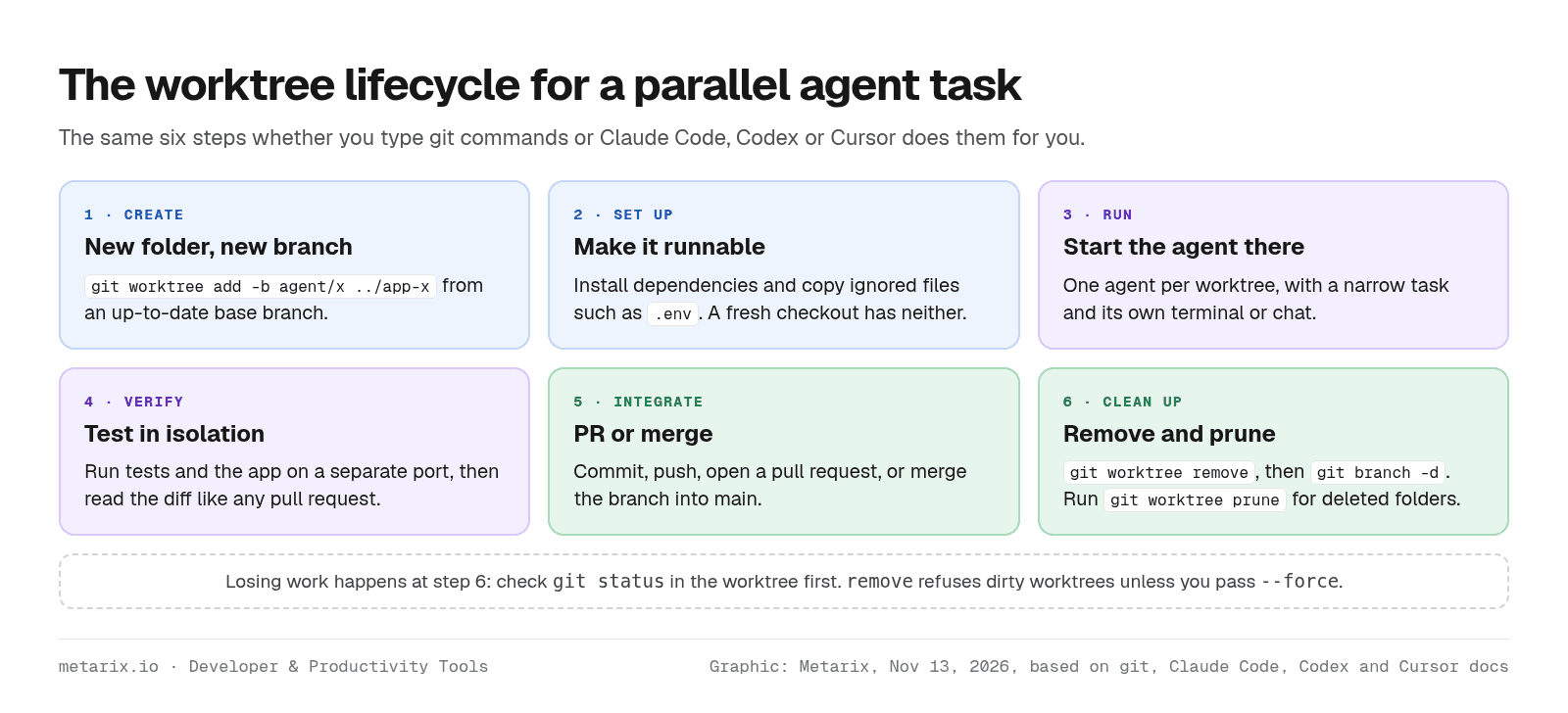
1. Split work so files don't overlap
Worktrees isolate edits while agents work, not when you merge. Two agents that both rewrite the same module will still conflict at merge time. Give parallel agents tasks in different areas, for example a bug fix in the API, tests for a utility package and a docs update, and keep cross-cutting refactors to one agent.
2. Start from a fresh base
Branch each worktree from an up-to-date main so the eventual pull requests are small and current. Claude Code's default does this by fetching the remote default branch; with plain Git, run git fetch and branch from origin/main.
3. Review each worktree like a pull request
Run the tests inside the worktree, read the diff, then push the branch and open a pull request. If several agent branches depend on each other, GitHub's stacked pull requests keep them reviewable, and an AI code review tool can take the first pass.
4. Clean up the same day
Each worktree holds its own dependencies and build caches, so disk use grows fast. Remove finished worktrees, delete merged branches and prune stale entries, or let your tool's cleanup handle the ones it created.
Common mistakes
- Checking out the agent's branch in your main folder. Git blocks it while the worktree holds the branch. Use Codex Handoff, VS Code's migrate command or Cursor's
/apply-worktree, or remove the worktree first. - Running too many agents. Every agent still needs your review. Two or three well-scoped parallel tasks usually beat ten you can't read.
- Forcing removal without checking.
git worktree remove --forcediscards uncommitted and untracked work. Rungit statusin the worktree first. - Forgetting about shared state. Hooks, Git config and the stash live in the shared repository, and Claude Code saves some permission approvals to the main checkout's settings, so changes in one worktree can affect the others.
- Expecting worktrees to be a sandbox. A worktree limits which files an agent edits, not what its shell commands can reach. For untrusted work, add your tool's sandbox or run the agent in a container.
Verdict
Git worktrees are the simplest reliable way to run more than one coding agent on a repository from your own machine. Use the built-in support in your main tool: Claude Code's --worktree flag, Codex's Worktree mode or Cursor's Agents Window. Each one handles creation, ignored-file copying and cleanup better than ad hoc scripts. Fall back to plain git worktree add when you mix agents or want worktrees in a location you control.
The setup work is what decides whether it pays off: a .worktreeinclude or setup script so each worktree runs on first try, tasks split so agents don't touch the same files, and a cleanup habit. For choosing the agents themselves, see our comparison of AI CLI coding agents.
Sources
- Git documentation: git-worktree (accessed Nov 13, 2026)
- Claude Code docs: Run parallel sessions with worktrees (accessed Nov 13, 2026)
- Claude Code docs: Common workflows (accessed Nov 13, 2026)
- OpenAI: Codex worktrees (accessed Nov 13, 2026)
- Cursor docs: Worktrees (accessed Nov 13, 2026)
- VS Code docs: Git branches and worktrees (accessed Nov 13, 2026)
- VS Code docs: Choose an agent harness (accessed Nov 13, 2026)
Tools covered in this guide
Frequently asked questions
- Can two AI coding agents work on the same Git repository at once?
- Yes, if each agent works in its own Git worktree. A worktree is a separate folder with its own branch, files and staging area that shares the repository's history, so agents can't overwrite each other's uncommitted edits. They can still produce merge conflicts later if their tasks change the same files.
- How do I start Claude Code in a git worktree?
- Run claude --worktree <name> (or claude -w <name>). Claude Code creates the worktree under .claude/worktrees/<name>/ on a new branch named worktree-<name> and starts the session there. Run the command with a different name in another terminal to start a second isolated session.
- Why does Git say a branch is already used by a worktree?
- Git allows each branch to be checked out in only one worktree at a time. Check out a different branch in one of the folders, remove the worktree that holds the branch, or use your tool's handoff or apply feature to move the changes into your main checkout.
- Do git worktrees copy .env files and node_modules?
- No. A new worktree contains only tracked files, so ignored files such as .env and installed dependencies are missing. Claude Code and Codex can copy listed ignored files through a .worktreeinclude file, and Cursor can run setup commands from .cursor/worktrees.json.
- How do I delete a git worktree safely?
- Check git status inside it, commit or save anything you need, then run git worktree remove <path> from another worktree. Delete the branch with git branch -d if it was merged, and run git worktree prune if a worktree folder was deleted by hand.